How to Use Google Calendar on Your Phone
A Step-by-Step Guide to Google Calendar for Seniors

SeniorLiving.org is supported by commissions from providers listed on our site. Read our Editorial Guidelines
Keeping track of doctor’s appointments, birthdays, your grandkid’s sports games, or family Zoom calls is hard! Fortunately for Android smartphone users, the Google Calendar app is available to help you keep track of it all, straight from your device! This app will keep you organized so that you don’t miss any important appointments or events.
Using Google Calendar, you can:
- Track birthdays, meetings, appointments, volunteer hours, and events.
- Set reminders for taking meds, bill payments, and household tasks.
- Share calendars and events with family, friends, and co-workers.
- Sync events across all your devices automatically.
- Color-code different types of events for easy viewing.
If you’ve never given Google Calendar a try, you’re probably wondering exactly how to get started. That’s why we’re here, to show you just how easy it is to use Google Calendar on your smartphone. We’ll walk you through downloading the app; how to add, edit, and remove events from your calendar; and how to set reminders for yourself. Let’s get started!
Note that every Android phone looks and works a little differently, so your screen might look a little different than the screenshots in this article.
How to Download Google Calendar On Your Phone
Some Android phones come with the Google Calendar app already downloaded, including the Google Pixel line of phones. Others come with a different calendar installed instead.
If you already know that you have Google Calendar, you can skip to the next section.
FYI: Are you an iPhone user? If so, you can still download the Google Calendar app on your phone from the Apple App Store. However, iPhones also come preloaded with their own calendar app. Head over to our guide to using the iPhone Calendar app for more details.
If you’re not sure or know that you don’t have Google Calendar, follow these steps to download the app.
Step 1. Open the app drawer on your phone. (This is where you go to see the apps on your phone.) Scroll until you see the Google Play Store app. Click on it to open it.
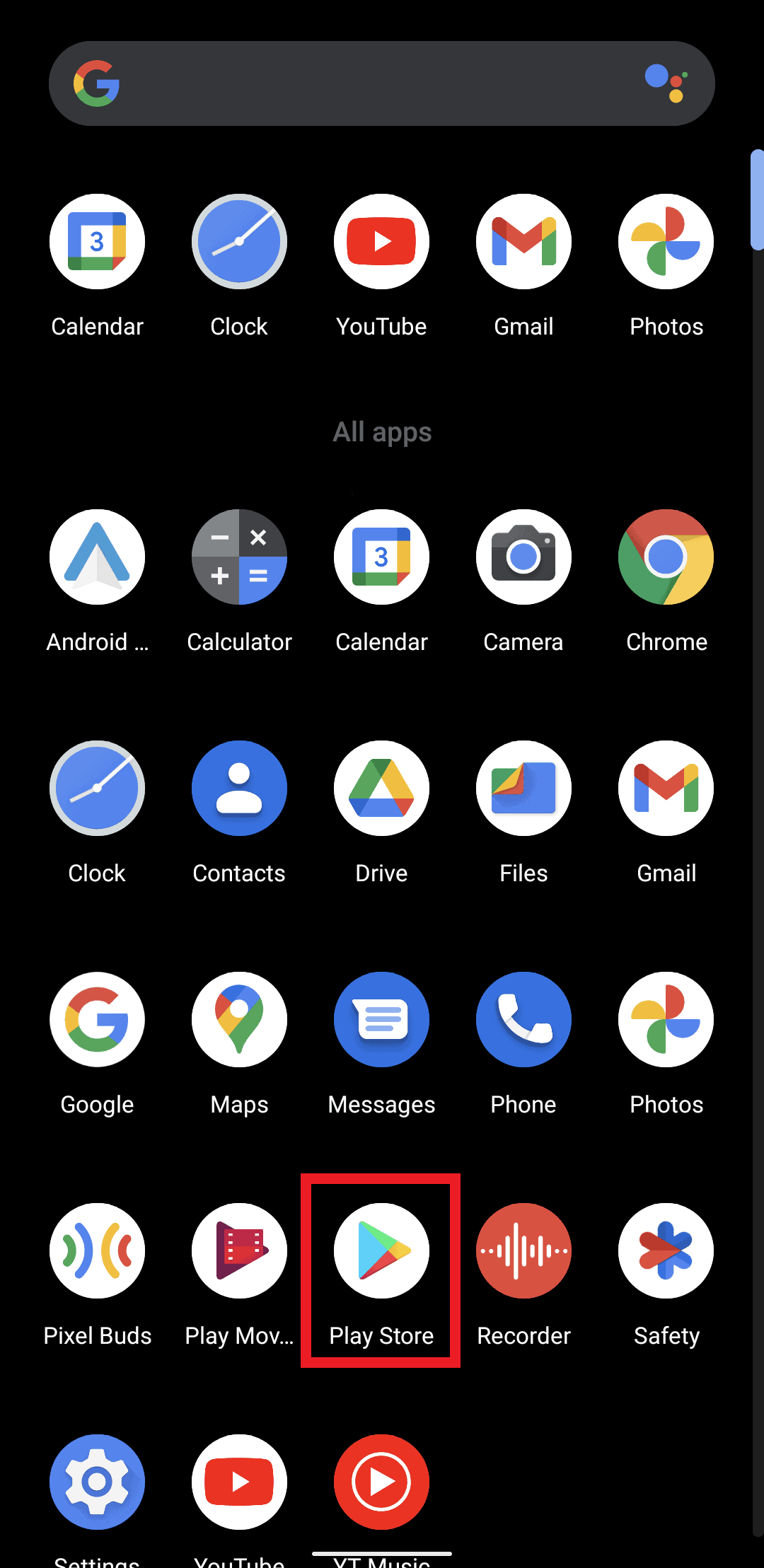
Open the Google Play store to download Google Calendar
Step 2. In the Google Play Store app, type “Google Calendar” into the search bar that’s located at the top of the screen.
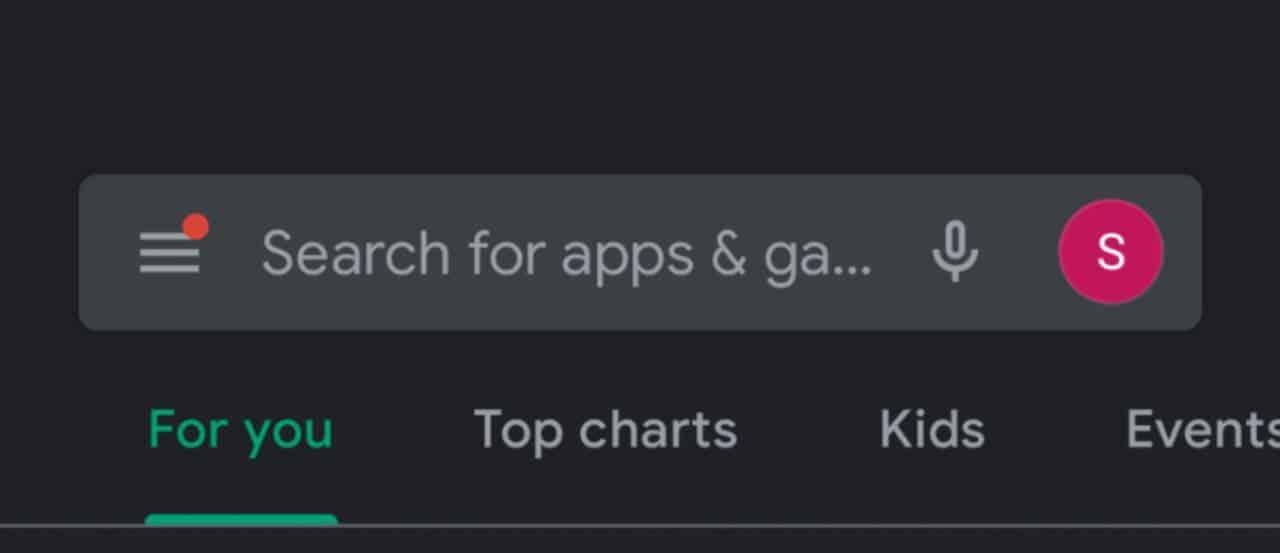
Search for Google Calendar
Step 3. The Google Calendar app should be the first result that shows up.
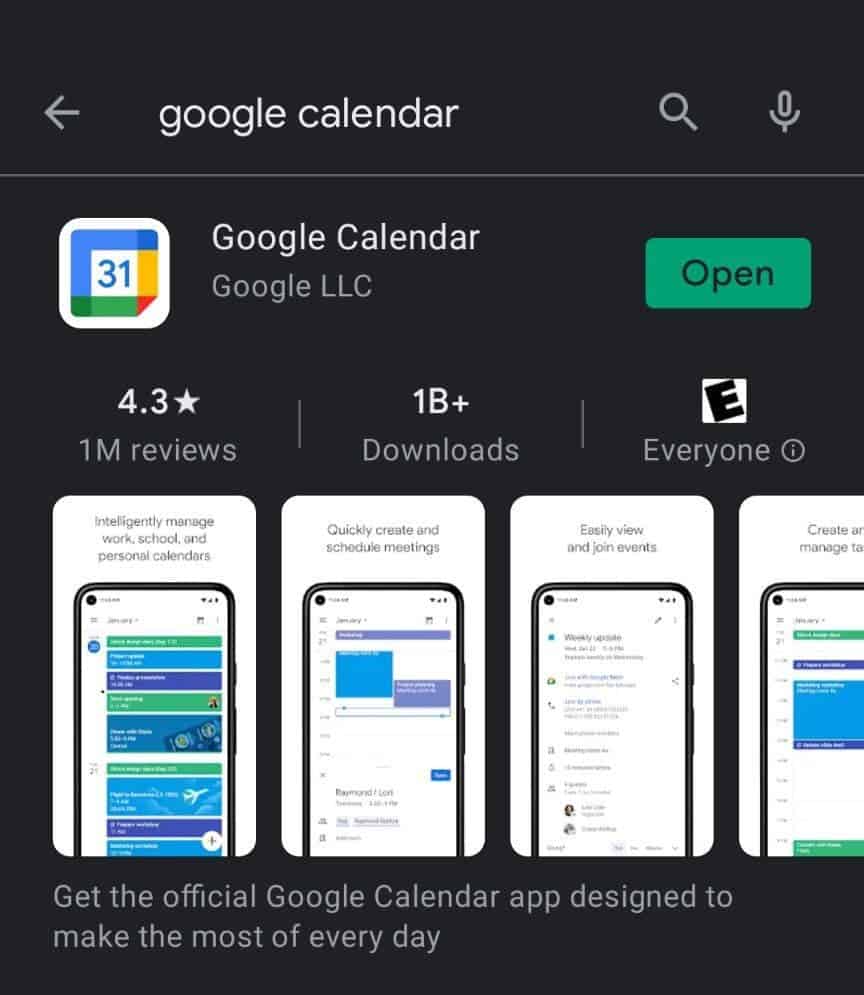
Click “open” or “download” to launch Google Calendar
If your screen looks like the image above, with a green box that says “Open,” you already have the app installed on your phone. You can go on to the next section.
If it says “Install,” next to the app icon, click “Install” to add the Google Calendar app on your phone.
How to Create an Event in Google Calendar
Most people use Google Calendar to track activities, birthdays, appointments, meetings, and important dates. Inside the Calendar App, these are all called “Events.” Let’s take a look at how to create an event.
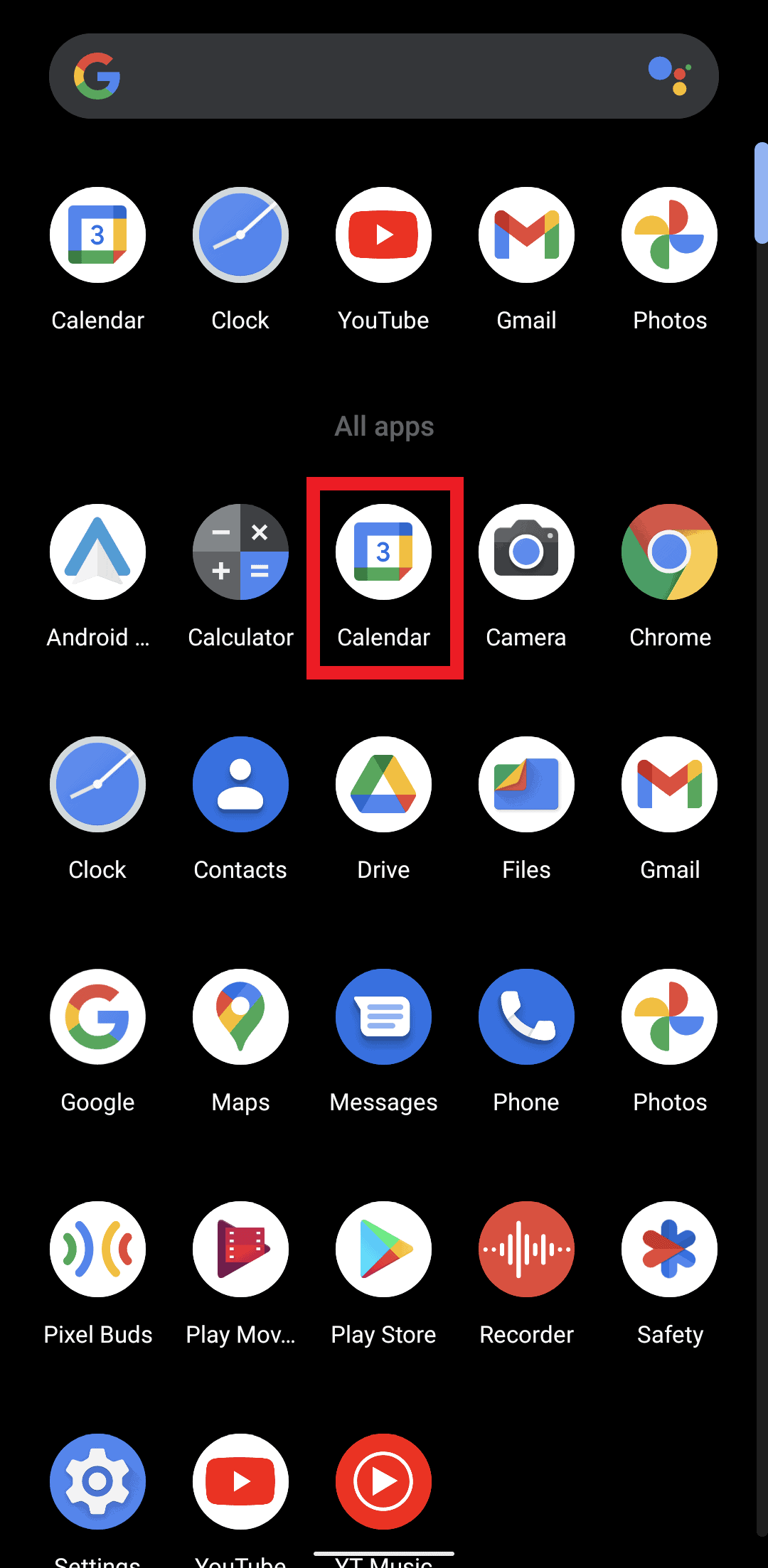
To create an event, you’ll first need to open the Google Calendar app on your phone. If you have it open already or know how to open it, great! If you don’t know how to open it, just follow the first three steps.
- From your phone’s home screen, open the app drawer. This is the menu where all of your apps are located.
- Scroll down until you see the Google Calendar app.

Tap the Google Calendar app
- Click on the Calendar app to open it.
- As soon as you open the app, you’ll see a big yellow, red, blue, and green “+” button on the bottom right-hand side of the screen. Click on it.
Create an event on your Google Calendar
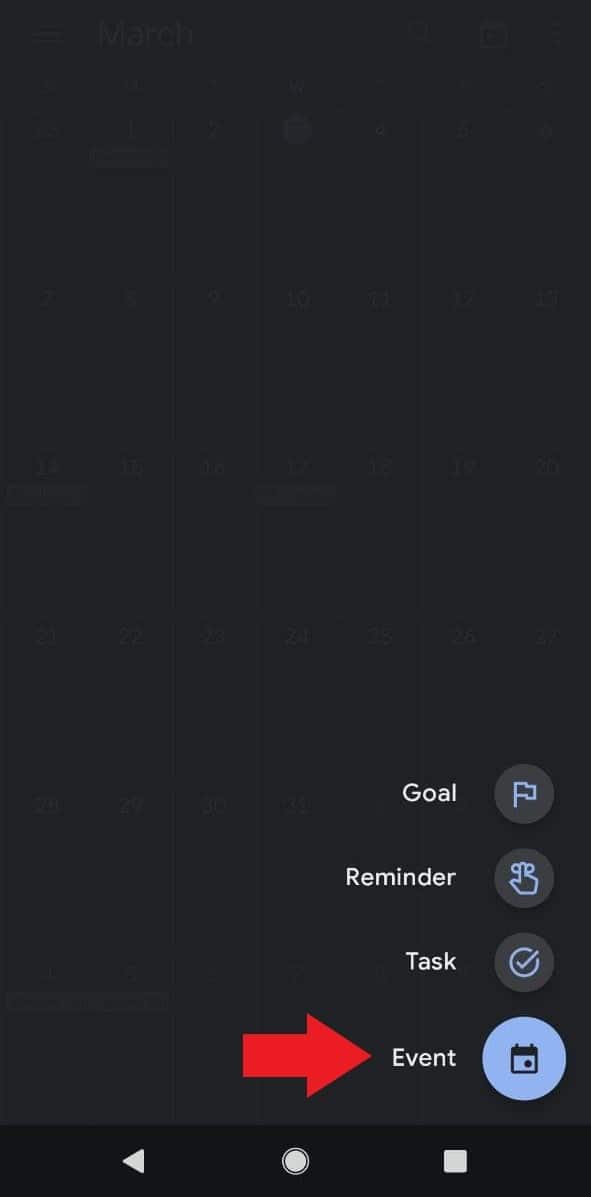
- When you click on the “+” button, you’ll see a list of items that you can add to your calendar or schedule.

Tap event in Google Calendar
- Click on the event icon to be taken to the page where you can enter the details about your event.

Editing your event details in Google Calendar
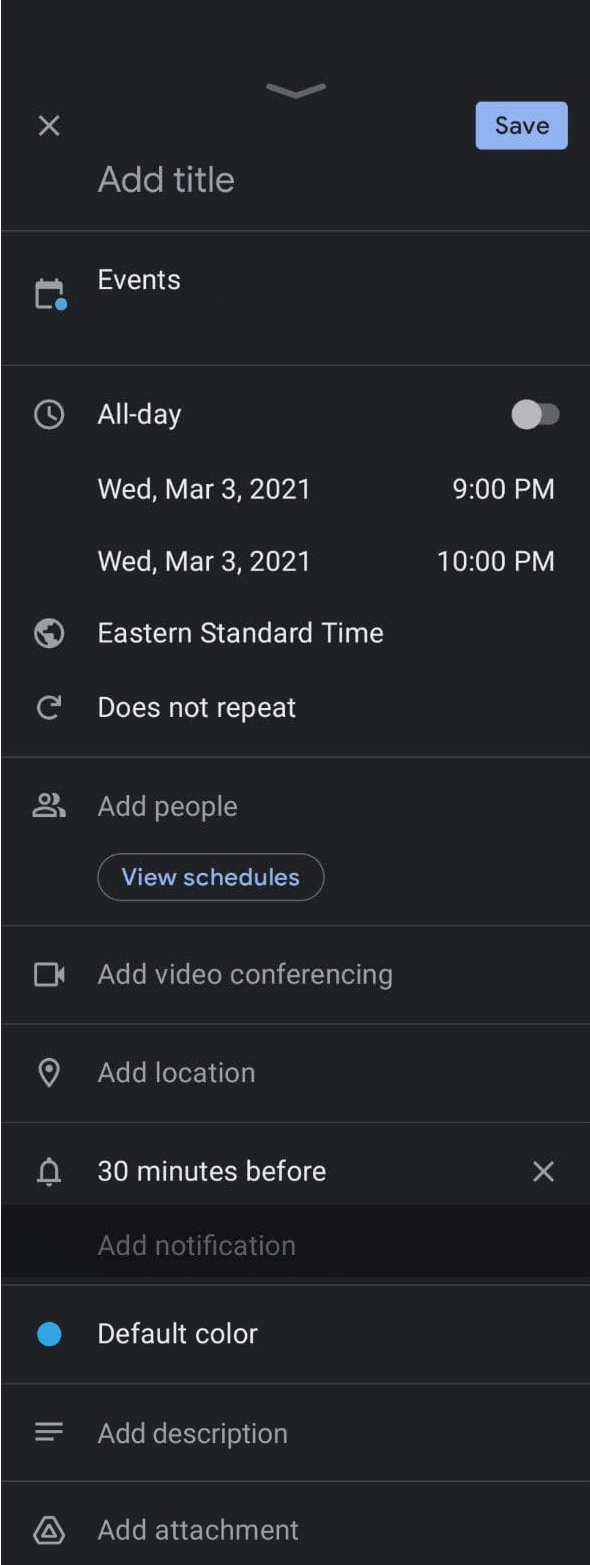
When you’re finished, click “Save” at the top of the screen to add the event to your Google Calendar.
Overview of Google Event Options and Features
Since the Event Details page offers so many customization options, we're going to take a look at a few and give some examples of how to use them.
Add title: This is the name of your event. You might enter something like “Doctor's Appointment” or “Coffee with Susan.” Keep it simple and clear so you'll recognize it at a glance.
All-day: Toggle this switch on if your event lasts all day, like a birthday or holiday. When it's on, you won't need to set specific start and end times.
Starts and Ends: These fields let you set the exact date and time for your event. Tap on each field to adjust the date or time using the pop-up calendar and clock.
Add location: Enter the address or name of where your event is happening. This is especially helpful for doctor's appointments or meetings at unfamiliar places. Google Calendar can even provide directions when the event time approaches.
Add notification: This feature alerts you before your event starts. You can set multiple notifications — for example, one week before and one hour before. Choose from preset times or create a custom notification schedule.
Add description: Use this space to add notes about your event. You might include what to bring, who will be there, or other important details.
Does not repeat: Tap this option if your event happens regularly, like a weekly exercise class or monthly book club. You can set it to repeat daily, weekly, monthly, yearly, or create a custom schedule.
Color: Assign different colors to different types of events. For example, you might use blue for medical appointments, green for family events, and red for important deadlines. This makes your calendar easier to read at a glance.
How to edit or delete an event in Google Calendar
Plans change, and Google Calendar makes it easy to update or remove events. Here's how to make changes to events you've already created.
Step 1. Open the Google Calendar app and find the event you want to edit or delete.
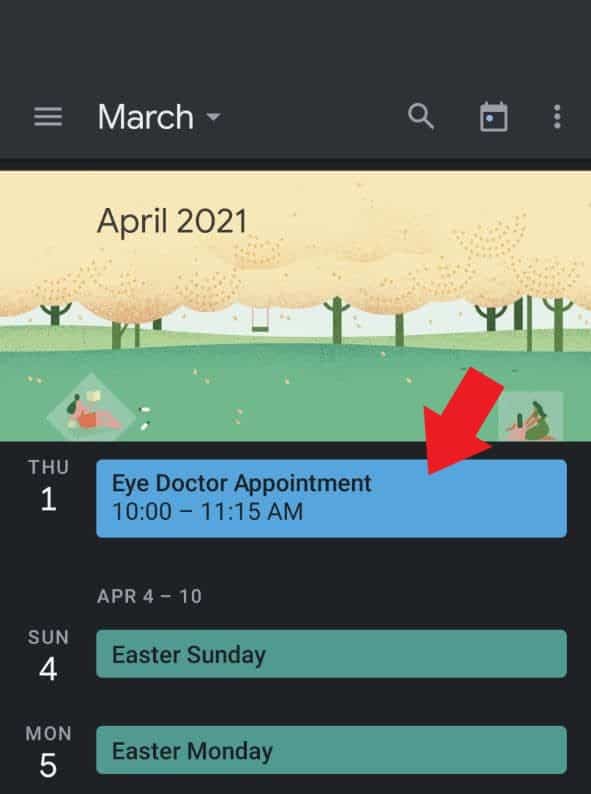
Edit your event in Google Calendar
Step 2. Tap on the event. A window will pop up showing the event details.
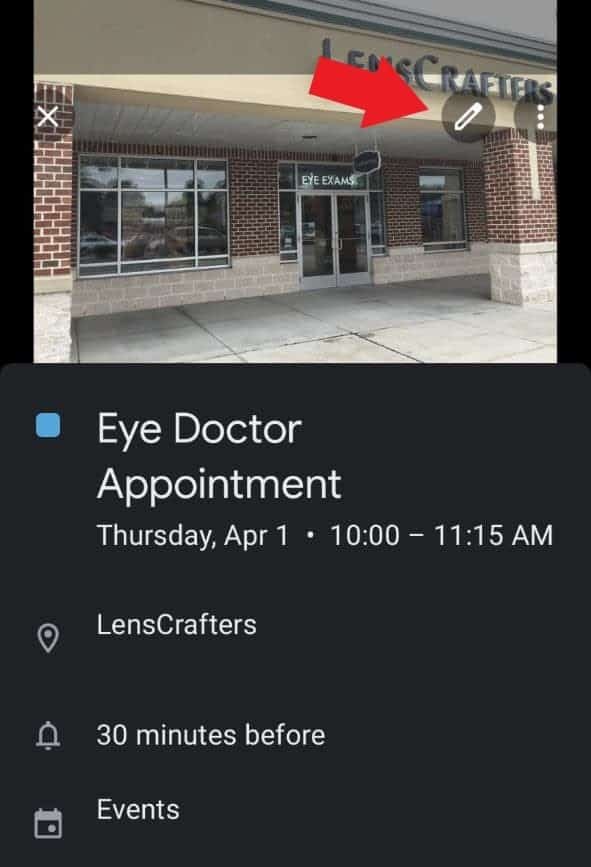
Tap the pencil icon in your Google Calendar event
Step 3. To edit the event, tap the pencil icon in the top right corner. This takes you to the same Event Details page you used when creating the event. Make your changes, then tap “Save” at the top of the screen.
Step 4. To delete the event, tap the three dots in the top right corner of the event window, then select “Delete.” Confirm that you want to delete the event when prompted.
Tip: If you accidentally delete an event, you can recover it within a short time by going to the three-line menu icon, selecting “Trash,” and restoring the event.
How to Use Google Assistant to Create Google Calendar Events
Did you know that you can create events using your voice? The Google Assistant, which is built into every Android phone, will create events for you.
This hands-free feature is especially helpful when you're busy or find typing difficult. You can add events while cooking, driving (safely pulled over), or anytime you prefer speaking to typing.
How you do this varies, depending on your phone model. The two most common ways to do it are:1
- Say “Hey Google” or “OK Google” followed by your command (if you've enabled voice activation).
- Press and hold the home button until Google Assistant appears.
Once Google Assistant is listening, you can say things like:
- “Create a calendar event for Thursday at 2 p.m.”
- “Add doctor's appointment to my calendar for March 15th at 10 a.m.”
- “Schedule lunch with Linda next Tuesday at noon.”
Google Assistant will confirm the details with you and add the event to your calendar. You can also ask it to show you your schedule by saying “What's on my calendar today?” or “What do I have scheduled this week?”
How to Create a Reminder in Google Calendar
Reminders are different from events in an important way: they stay on your calendar until you mark them as done. This makes them perfect for tasks like “Pick up prescription” or “Call insurance company” — things you need to do but that don't happen at a specific time.
Here's how to create a reminder:
Step 1. Open the Google Calendar app and tap the colorful “+” button at the bottom right of your screen.
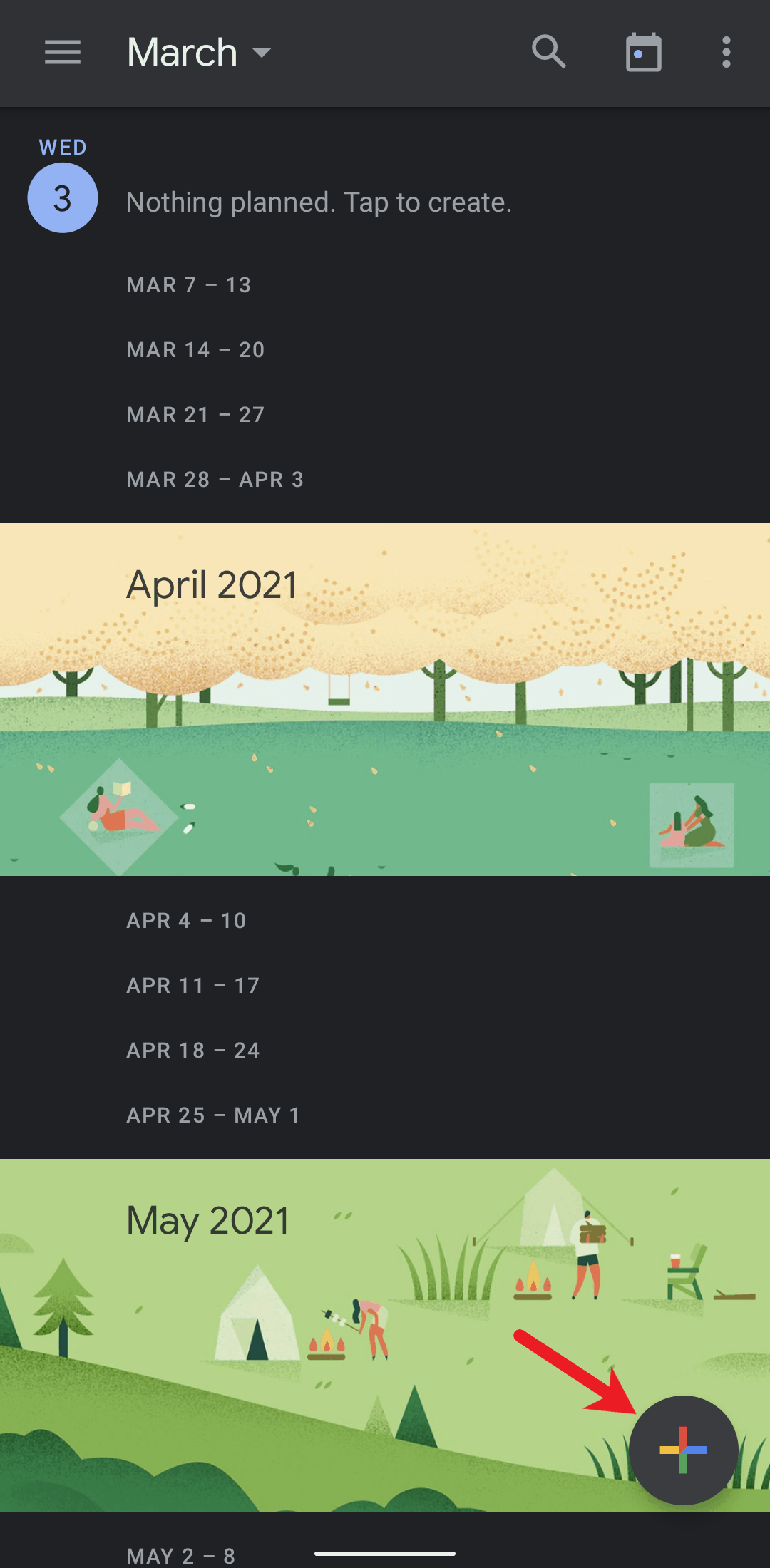
Create an event on your Google Calendar
Step 2. From the menu that appears, select “Reminder.”
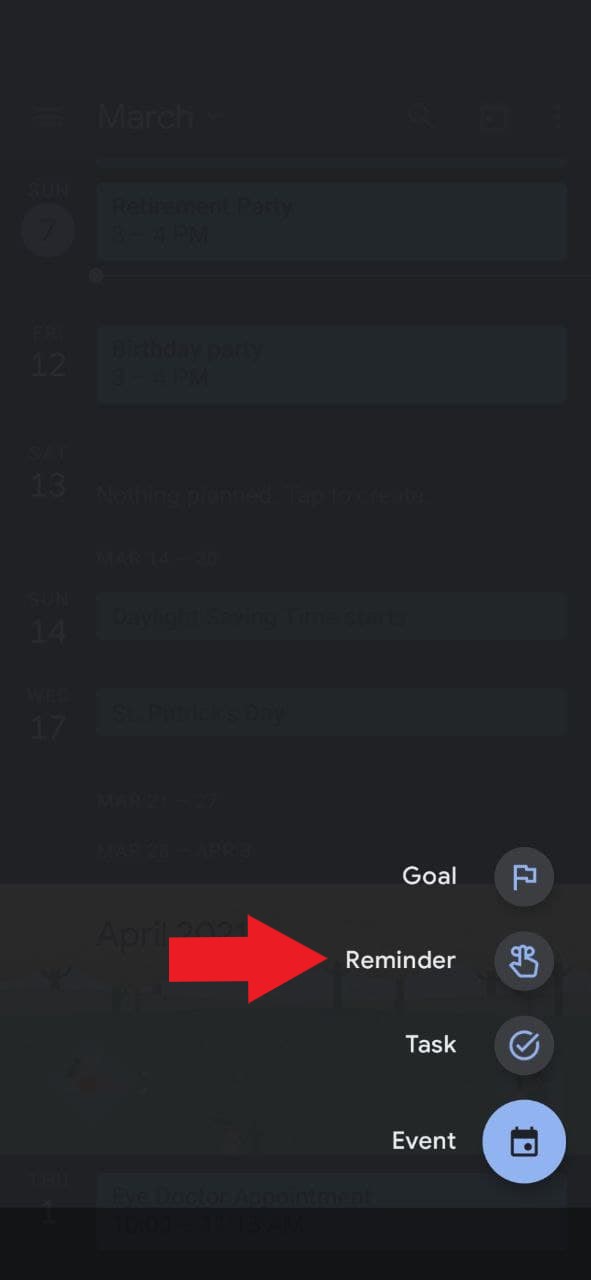
Click “Reminder” in your Google calendar
Step 3. Enter what you want to be reminded about in the text field at the top.
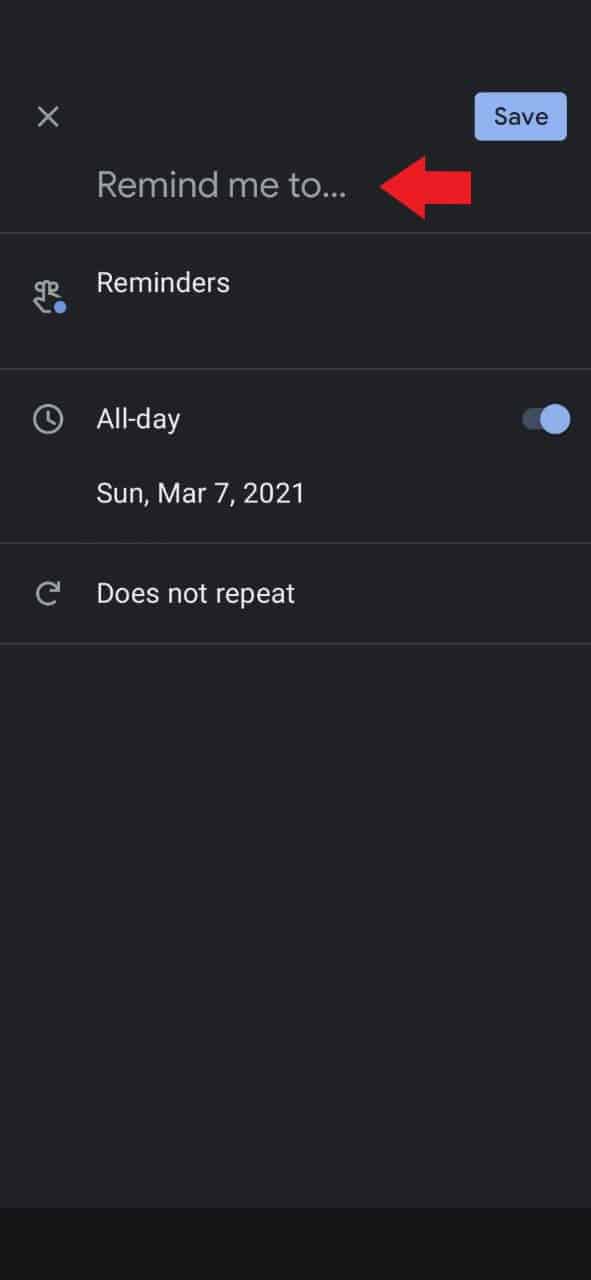
Fill out the reminder in the Google Calendar app
Step 4. Set when you want to be reminded. You can choose a specific date and time, or select “All day” if the timing is flexible.
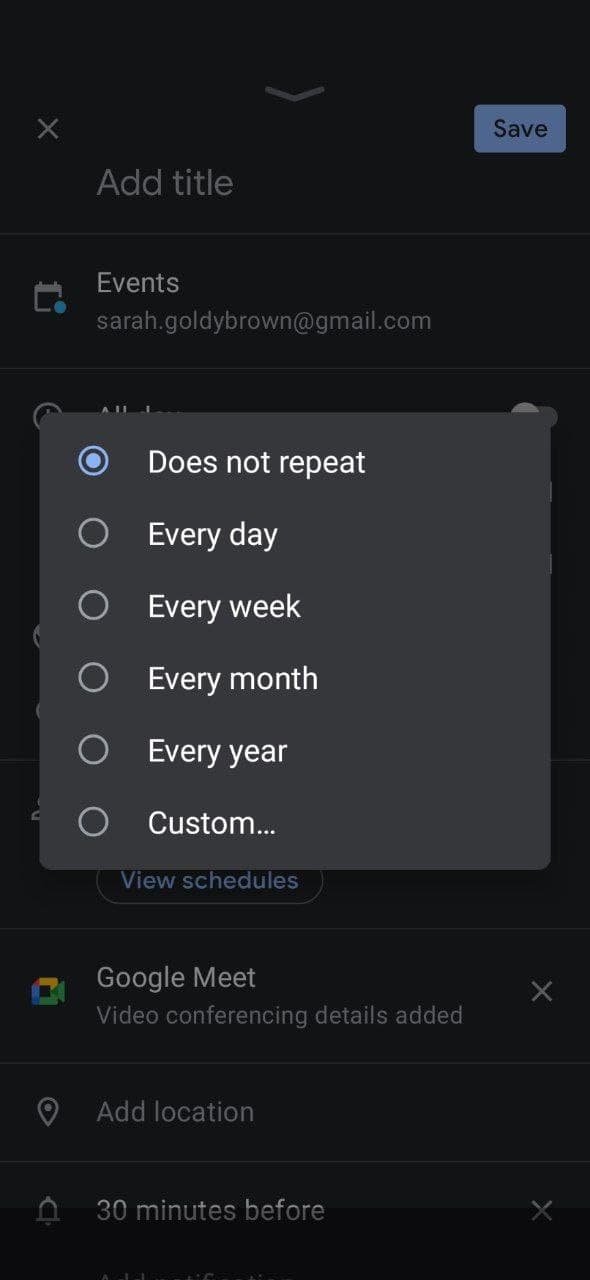
Make a repeating Google Calendar event
Step 5. Tap “Save” to add the reminder to your calendar.
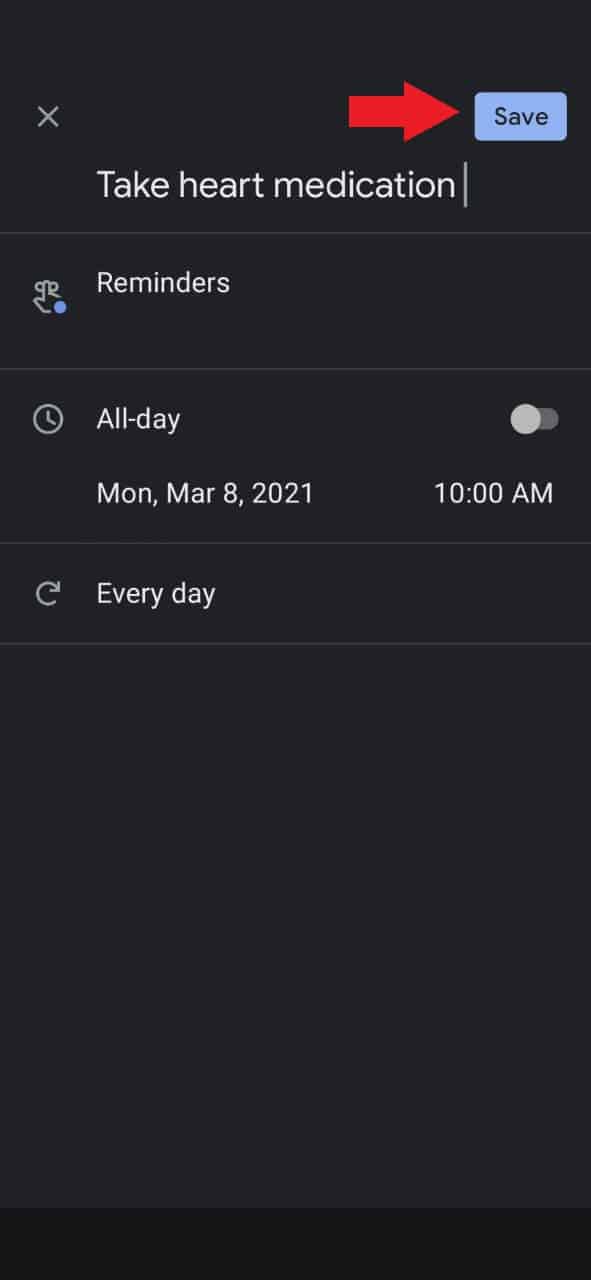
Save your Google Calendar reminder
When it's time for your reminder, you'll get a notification on your phone. The reminder will continue to appear on your calendar each day until you mark it as done by tapping on it and selecting the checkmark icon.
Quick Tip: Interested in learning about other useful smartphone apps? Take a look at our list of the best mobile apps for seniors.
How to share your Google Calendar with others
Sharing your calendar with family members or caregivers helps everyone stay coordinated. They can see your appointments and events, which is especially useful if someone helps manage your schedule or needs to know when you're available.
Here's how to share your calendar:
Step 1. Open the Google Calendar app and tap the three horizontal lines in the top left corner.
Step 2. Scroll down and tap “Settings.”
Step 3. Select the calendar you want to share (usually labeled with your email address).
Step 4. Tap “Share with specific people.”
Step 5. Tap “Add people” and enter the email address of the person you want to share with.
Step 6. Choose their permission level: “See only free/busy” (they can see when you're busy but not event details), “See all event details” (they can view everything), or “Make changes to events” (they can edit your calendar).
Step 7. Tap “Send” to share your calendar.
The person you shared with will receive an email invitation. Once they accept, your calendar will appear in their Google Calendar app.2
The bottom line
Google Calendar is a powerful tool that helps you stay organized and never miss important appointments or events. With features like voice commands, color-coded events, automatic reminders, and calendar sharing, it's designed to make managing your schedule as simple as possible.
Take your time exploring the app and don't worry if it feels overwhelming at first. Start by adding just one or two events, then gradually experiment with other features like reminders and color-coding. Before you know it, using Google Calendar will become second nature, and you'll wonder how you ever kept track of everything without it!
-
Google. (2021). Set up Google Assistant on your device.
-
Google Calendar Help. (n.d.). Share your calendar with someone.